Two main variants of the installers are provided:
.deb used by e.g. Ubuntu, Mint, MX Linux, Deepin, AntiX, PureOS, Kali, Parrot, Devuan, Knoppix and AV Linux
.rpm used by e.g. Fedora, RHEL, CentOS, openSUSE, OpenMandriva and Oracle Linux
Download the newest version:
ARM64 versions may be available on request.
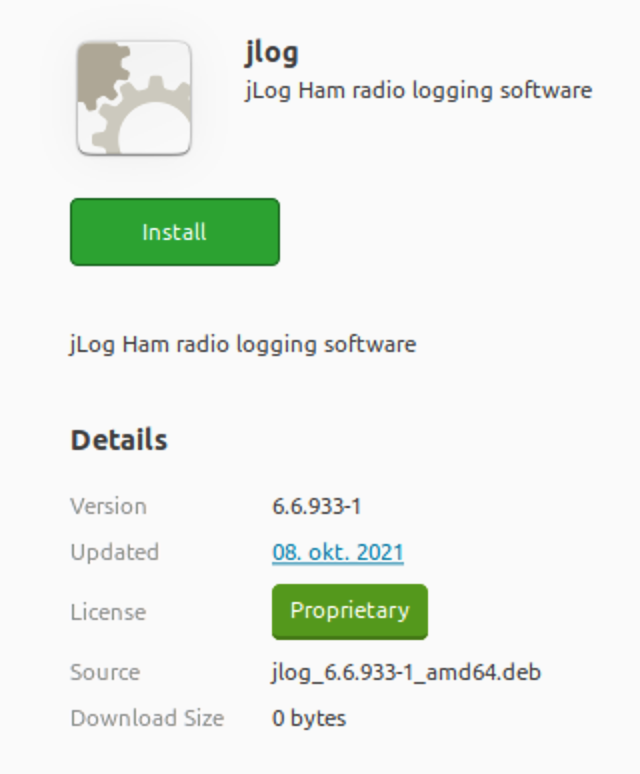
Click on the downloaded file and a Dialogue box (first picture) allows you to click Install. You should now be able to find the jLog shortcut in the menu system.
Some distributions may experience the message "Same version already installed". You can safely exit the installer and verify that the new version has been installed.
If you experience problems removing the previous version, open the Software Manager, search for 'jLog' and remove it. Then, run the installer file again.
Note for Gnome users (e.g. Ubuntu, Fedora):
If fonts are too large, try changing Gnome desktop fonts, by experimenting with the font scaling factor, e.g. enter in Terminal:
Note that it may also be necessary to run: sudo chmod a+rw /dev/ttyUSB* (or similar name to access the USB radio interface devices) after restarting Linux.
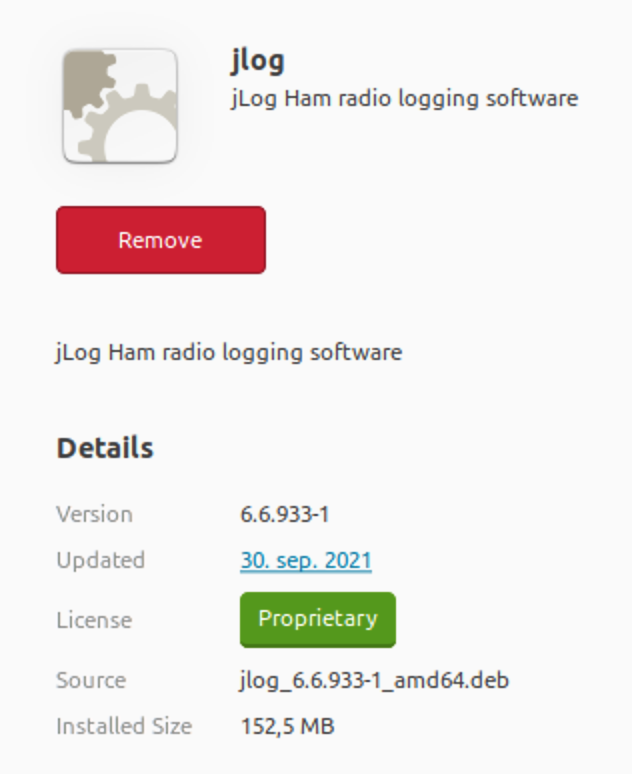
Run the jLog installer to first remove the jLog application. Note that your personal info (logbooks, profile, etc.) will not be removed. Click Remove (picture 2) and exit the installer when finished.
Run the installer again to install the updated version (se Install jLog above).
Run the jLog installer to remove the jLog application.
You may also remove your personal files by deleting the